Row
A control that displays its children in a horizontal array.
To cause a child control to expand and fill the available horizontal space set its expand property.
Examples
Row spacing
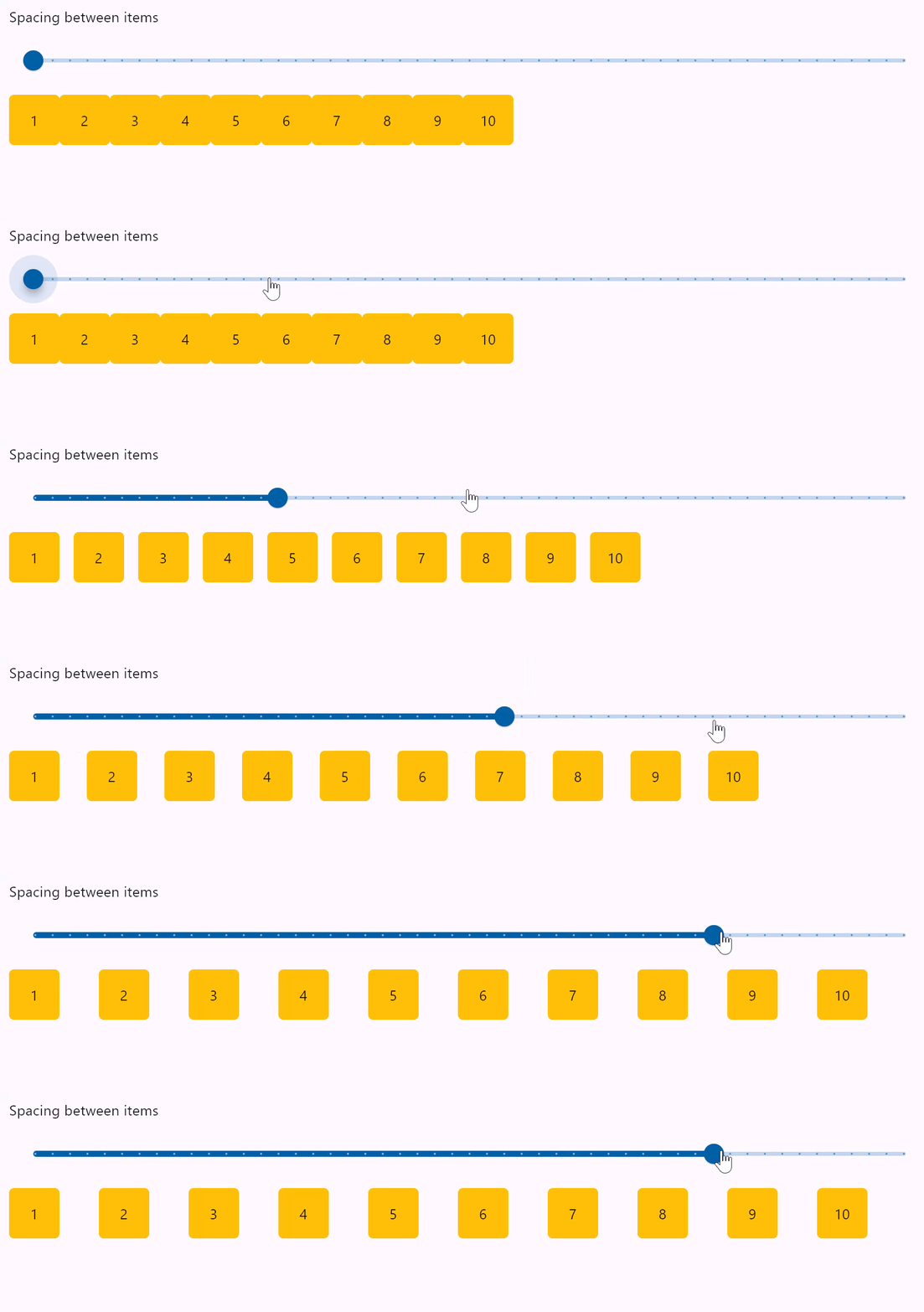
- Python
import flet as ft

def main(page: ft.Page):
    def items(count):
        items = []
        for i in range(1, count + 1):
            items.append(
                ft.Container(
                    content=ft.Text(value=str(i)),
                    alignment=ft.alignment.center,
                    width=50,
                    height=50,
                    bgcolor=ft.colors.AMBER,
                    border_radius=ft.border_radius.all(5),
                )
            )
        return items

    def gap_slider_change(e):
        row.spacing = int(e.control.value)
        row.update()

    gap_slider = ft.Slider(
        min=0,
        max=50,
        divisions=50,
        value=0,
        label="{value}",
        on_change=gap_slider_change,
    )

    row = ft.Row(spacing=0, controls=items(10))

    page.add(ft.Column([ ft.Text("Spacing between items"), gap_slider]), row)

ft.app(target=main)
Row wrapping
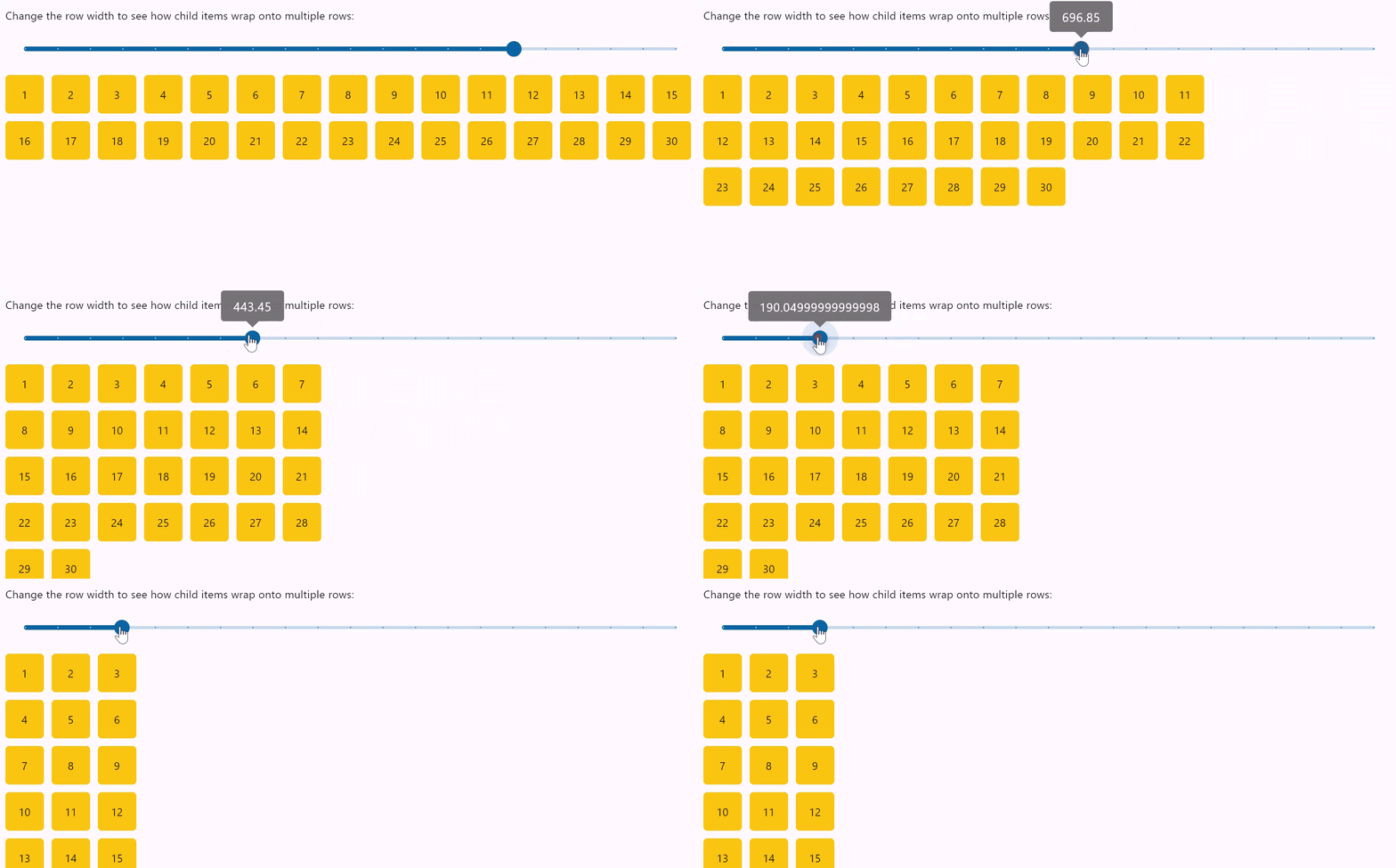
- Python
import flet as ft

def main(page: ft.Page):
    def items(count):
        items = []
        for i in range(1, count + 1):
            items.append(
                ft.Container(
                    content=ft.Text(value=str(i)),
                    alignment=ft.alignment.center,
                    width=50,
                    height=50,
                    bgcolor=ft.colors.AMBER,
                    border_radius=ft.border_radius.all(5),
                )
            )
        return items

    def slider_change(e):
        row.width = float(e.control.value)
        row.update()

    width_slider = ft.Slider(
        min=0,
        max=page.window_width,
        divisions=20,
        value=page.window_width,
        label="{value}",
        on_change=slider_change,
    )

    row = ft.Row(
        wrap=True,
        spacing=10,
        run_spacing=10,
        controls=items(30),
        width=page.window_width,
    )

    page.add(
        ft.Column(
            [
                ft.Text(
                    "Change the row width to see how child items wrap onto multiple rows:"
                ),
                width_slider,
            ]
        ),
        row,
    )

ft.app(target=main)
Row horizontal alignments
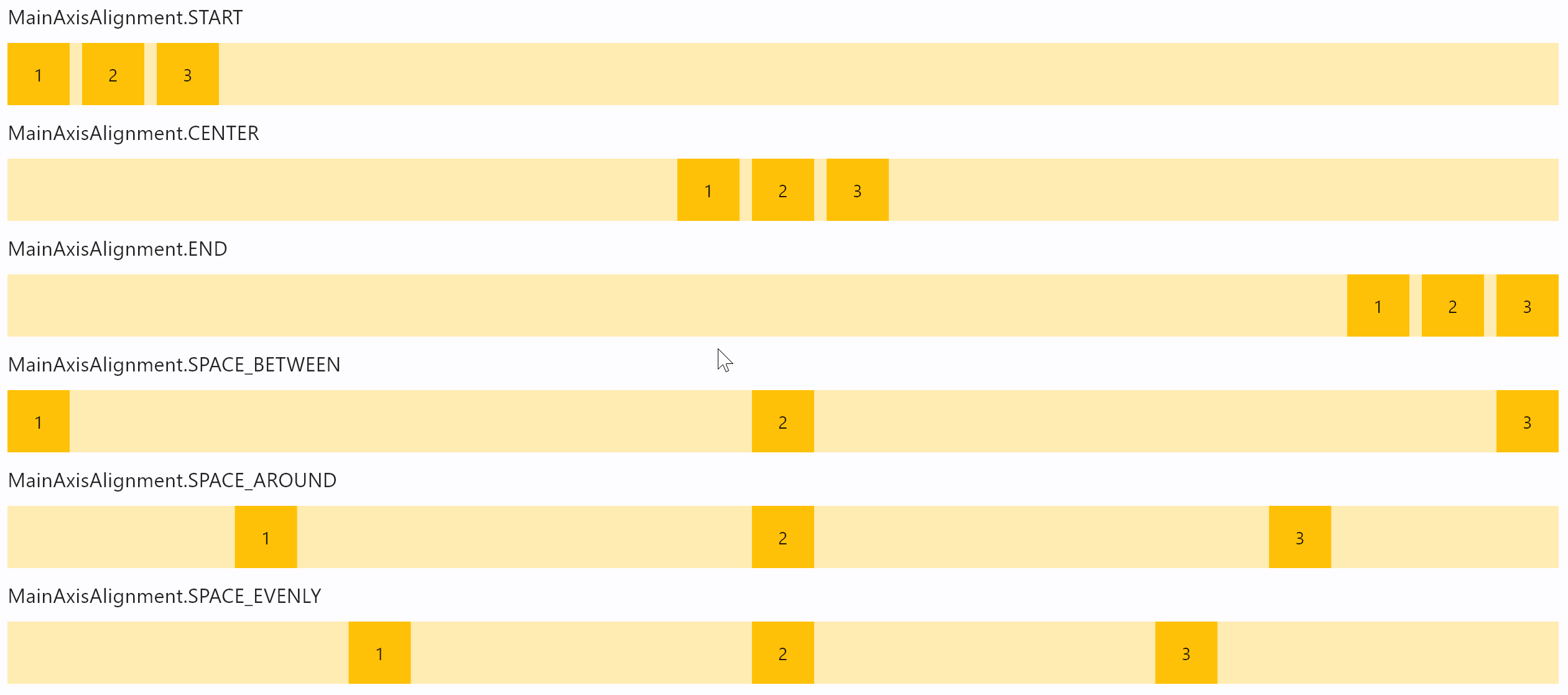
- Python
import flet as ft

def main(page: ft.Page):
    def items(count):
        items = []
        for i in range(1, count + 1):
            items.append(
                ft.Container(
                    content=ft.Text(value=str(i)),
                    alignment=ft.alignment.center,
                    width=50,
                    height=50,
                    bgcolor=ft.colors.AMBER_500,
                )
            )
        return items

    def row_with_alignment(align: ft.MainAxisAlignment):
        return ft.Column(
            [
                ft.Text(str(align), size=16),
                ft.Container(
                    content=ft.Row(items(3), alignment=align),
                    bgcolor=ft.colors.AMBER_100,
                ),
            ]
        )

    page.add(
        row_with_alignment(ft.MainAxisAlignment.START),
        row_with_alignment(ft.MainAxisAlignment.CENTER),
        row_with_alignment(ft.MainAxisAlignment.END),
        row_with_alignment(ft.MainAxisAlignment.SPACE_BETWEEN),
        row_with_alignment(ft.MainAxisAlignment.SPACE_AROUND),
        row_with_alignment(ft.MainAxisAlignment.SPACE_EVENLY),
    )


ft.app(target=main)
Row vertical
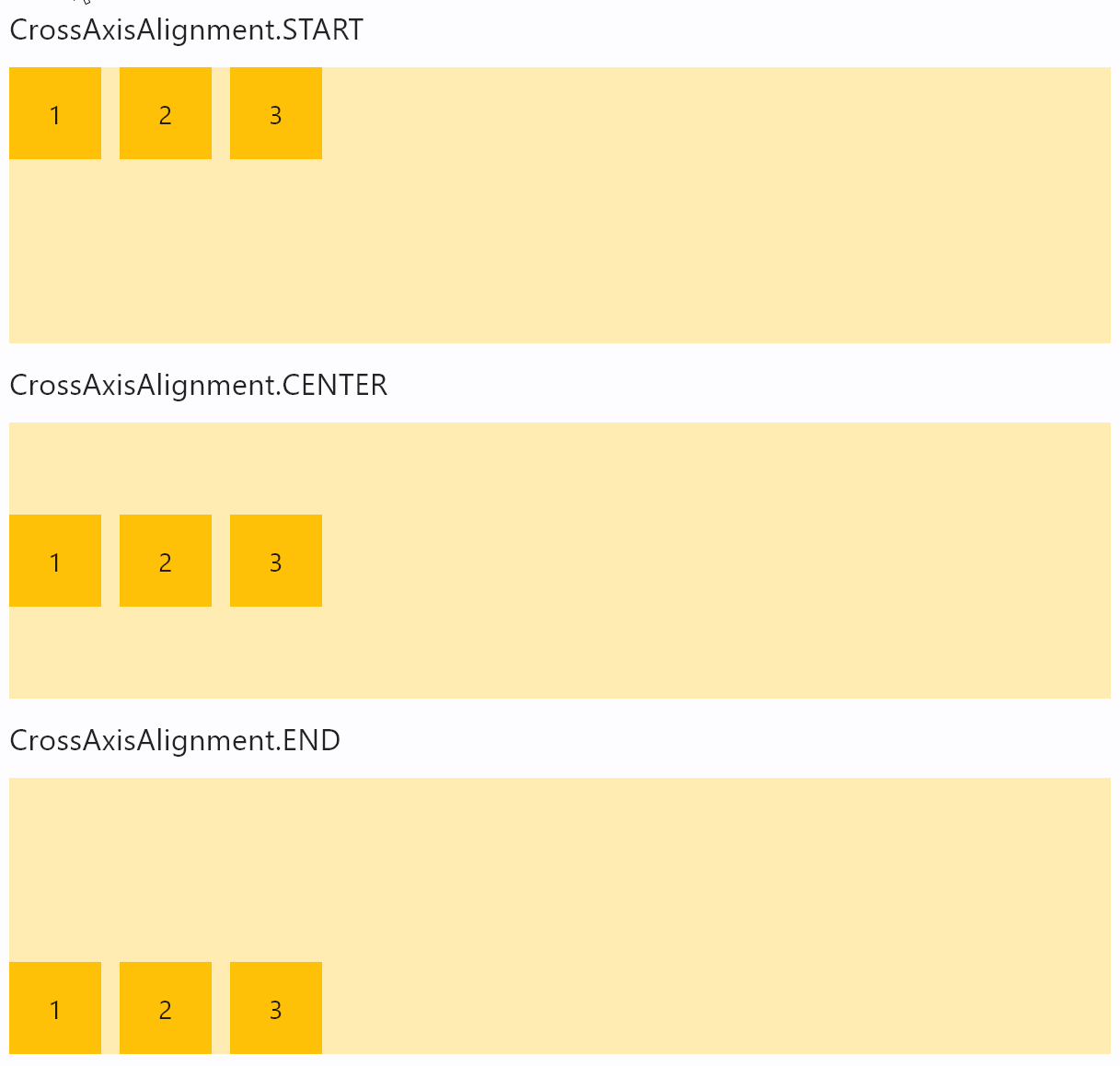
- Python
import flet as ft

def main(page: ft.Page):
    def items(count):
        items = []
        for i in range(1, count + 1):
            items.append(
                ft.Container(
                    content=ft.Text(value=str(i)),
                    alignment=ft.alignment.center,
                    width=50,
                    height=50,
                    bgcolor=ft.colors.AMBER_500,
                )
            )
        return items

    def row_with_vertical_alignment(align: ft.CrossAxisAlignment):
        return ft.Column(
            [
                ft.Text(str(align), size=16),
                ft.Container(
                    content=ft.Row(items(3), vertical_alignment=align),
                    bgcolor=ft.colors.AMBER_100,
                    height=150,
                ),
            ]
        )

    page.add(
        row_with_vertical_alignment(ft.CrossAxisAlignment.START),
        row_with_vertical_alignment(ft.CrossAxisAlignment.CENTER),
        row_with_vertical_alignment(ft.CrossAxisAlignment.END),
    )

ft.app(target=main)
Properties
alignment
How the child Controls should be placed horizontally.
For example, MainAxisAlignment.START, the default, places the children on the left of a Row.
Property value is MainAxisAlignment enum with the following values:
START(default)ENDCENTERSPACE_BETWEENSPACE_AROUNDSPACE_EVENLY
auto_scroll
True if scrollbar should automatically move its position to the end when children updated. Must be False for scroll_to() method to work.
controls
A list of Controls to display inside the Row.
rtl
True to set text direction to right-to-left. Default is False.
run_spacing
Spacing between runs when wrap=True. Default value is 10.
scroll
Enables horizontal scrolling for the Row to prevent its content overflow.
Property value is an optional ScrollMode enum with None as default.
Supported values:
None(default) - the Row is non-scrollable and its content could overflow.AUTO- scrolling is enabled and scroll bar is only shown when scrolling occurs.ADAPTIVE- scrolling is enabled and scroll bar is always shown when running app as web or desktop.ALWAYS- scrolling is enabled and scroll bar is always shown.HIDDEN- scrolling is enabled, but scroll bar is always hidden.
spacing
Spacing between controls in a row. Default value is 10 virtual pixels. Spacing is applied only when alignment is set to start, end or center.
on_scroll_interval
Throttling in milliseconds for on_scroll event. Default is 10.
tight
Specifies how much space should be occupied horizontally. Default is False - allocate all space to children.
vertical_alignment
How the child Controls should be placed vertically.
Property value is CrossAxisAlignment enum with the following values:
START(default)CENTERENDSTRETCHBASELINE
wrap
When set to True the Row will put child controls into additional rows (runs) if they don't fit a single row.
on_scroll
Fires when row's scroll position is changed by a user.
See Column.on_scroll for event details and examples.
Methods
scroll_to(offset, delta, key, duration, curve)
Moves scroll position to either absolute offset, relative delta or jump to the control with specified key.
See Column.scroll_to() for method details and examples.
Events
on_scroll
Fires when scroll position is changed by a user.
See Column.on_scroll for event details and examples.
Expanding children
When a child Control is placed into a Row you can "expand" it to fill the available space. Every Control has expand property that can have either a boolean value (True - expand control to fill all available space) or an integer - an "expand factor" specifying how to divide a free space with other expanded child controls. For example, this code creates a row with a TextField taking all available space and an ElevatedButton next to it:
r = ft.Row([
  ft.TextField(hint_text="Enter your name", expand=True),
  ft.ElevatedButton(text="Join chat")
])
The following example with numeric expand factors creates a Row with 3 containers in it and having widths of 20% (1/5), 60% (3/5) and 20% (1/5) respectively:
r = ft.Row([
  ft.Container(expand=1, content=ft.Text("A")),
  ft.Container(expand=3, content=ft.Text("B")),
  ft.Container(expand=1, content=ft.Text("C"))
])
In general, the resulting width of a child in percents is calculated as expand / sum(all expands) * 100%.
If you need to give the child Control of the Row the flexibility to expand to fill the available space horizontally but not require it to fill the available space, set its expand_loose property to True.